> ## Documentation Index
> Fetch the complete documentation index at: https://formbricks.com/docs/llms.txt
> Use this file to discover all available pages before exploring further.
# Advanced Targeting
> Advanced Targeting allows you to show surveys to a specific segment of your users. You can target surveys based on user attributes, device type, and more. This helps you get more relevant insights while keeping survey fatigue at a minimum. After the initial setup, you can target any segment without touching code.
Advanced Targeting is part of the [Enterprise Edition](/self-hosting/advanced/license).
### When to use Advanced Targeting?
Advanced Targeting helps you achieve a number of goals:
1. **Relevance**: Keep survey content relevant to respondents.
2. **Cohort-analysis**: Survey specific user cohorts only.
3. **Statistical Relevance:** When surveying a smaller subset of users, statistical relevance is reached with a lot less responses.
## How does Advanced Targeting work?
To get started, go to the Contacts tab and create a new Segment:
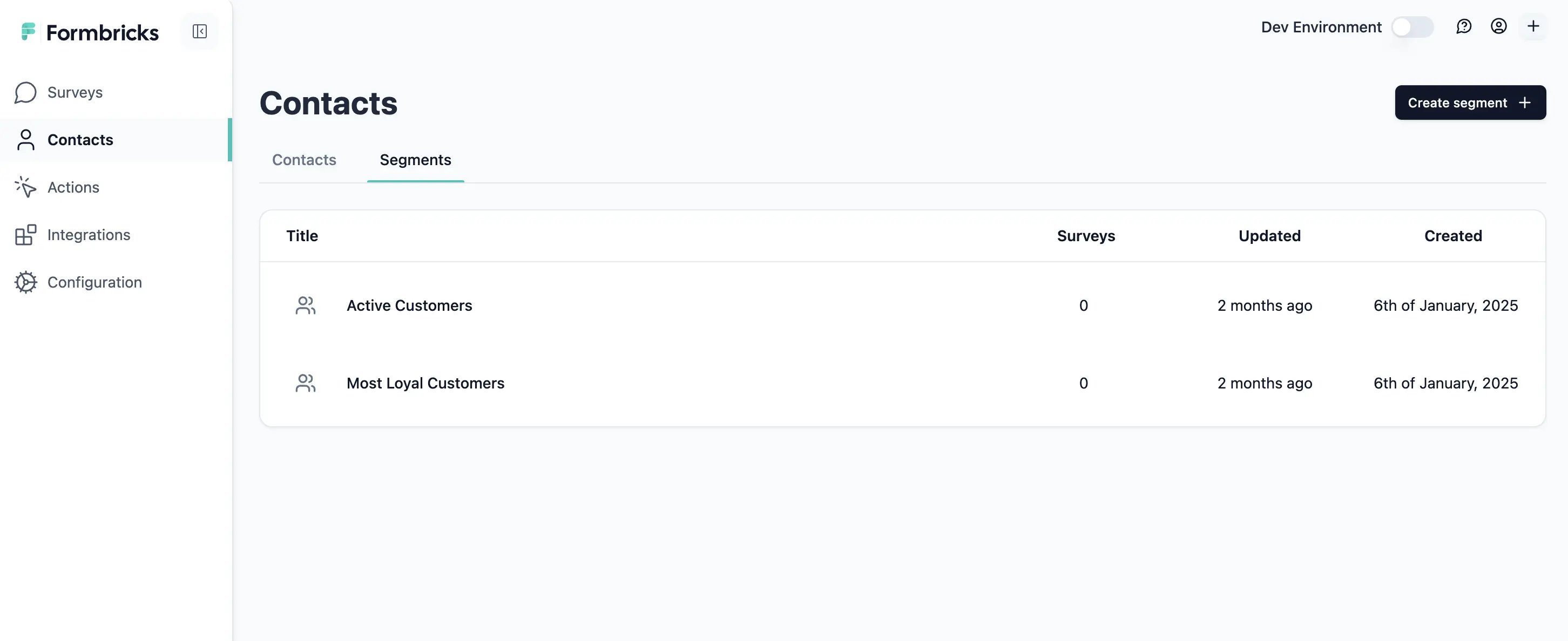 In the Segment editor, you can configure your Segment with a combination of Attributes, Segments and Devices. If a user matches either or all of the criteria, they become part of the Segment. See [Segment Configuration](/surveys/website-app-surveys/advanced-targeting#segment-configuration) below.
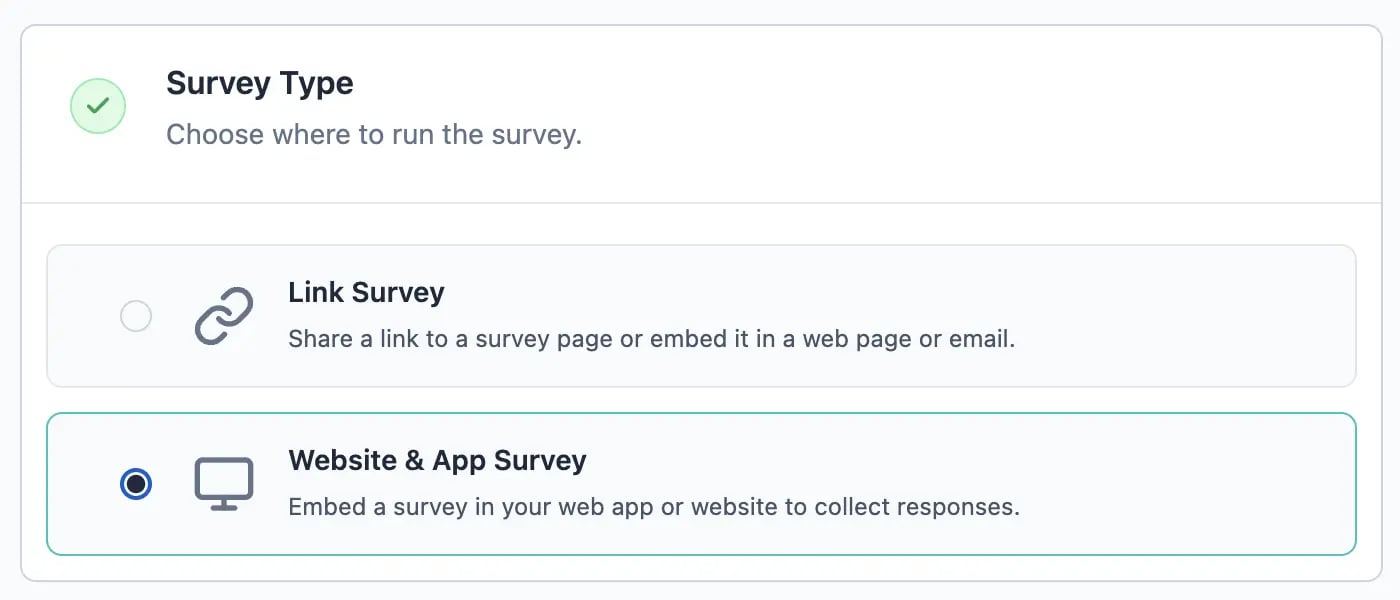
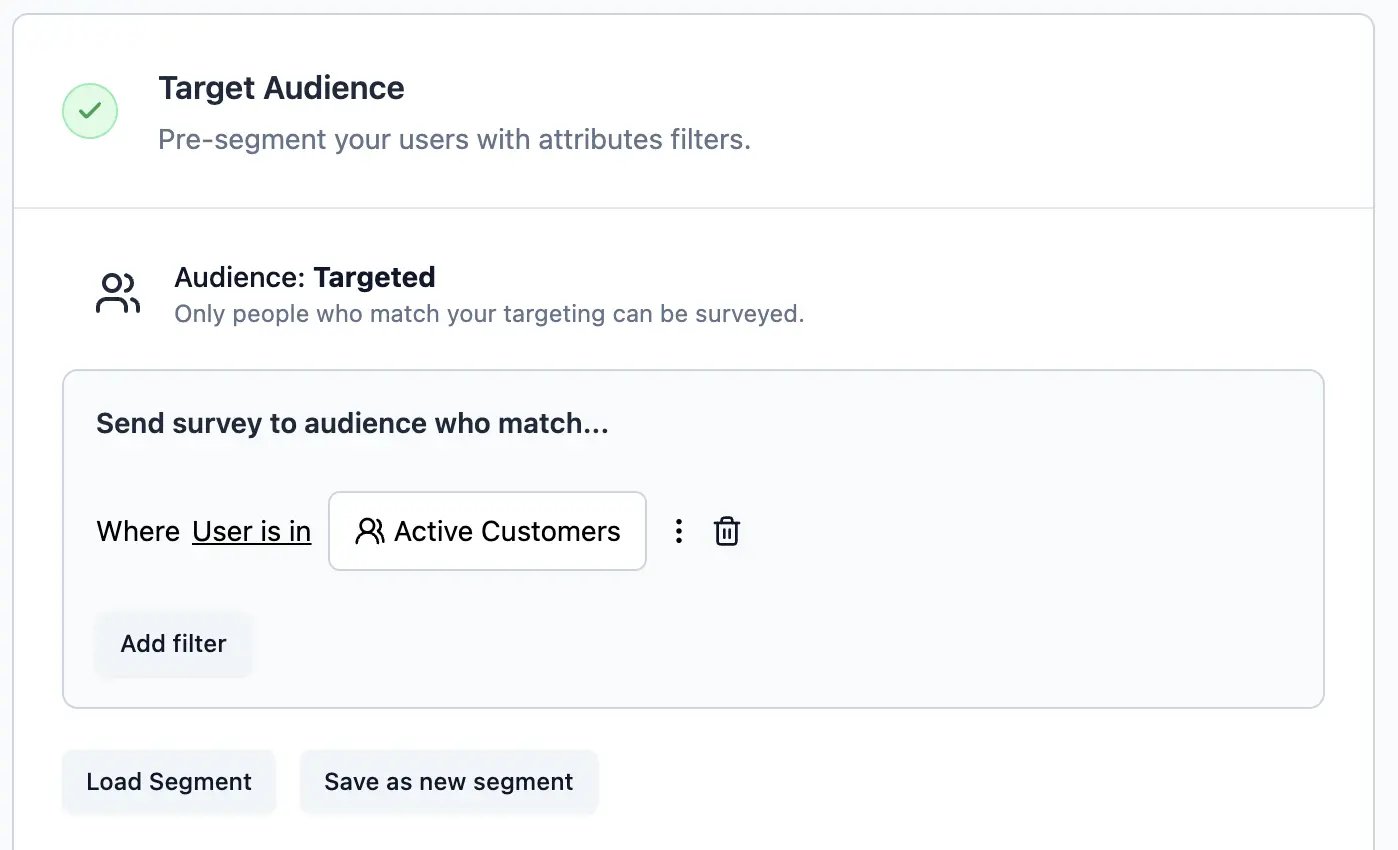
Create a new survey and go to Settings to change it to Website & App survey:
In the Segment editor, you can configure your Segment with a combination of Attributes, Segments and Devices. If a user matches either or all of the criteria, they become part of the Segment. See [Segment Configuration](/surveys/website-app-surveys/advanced-targeting#segment-configuration) below.
Create a new survey and go to Settings to change it to Website & App survey:
 ### Segment Configuration
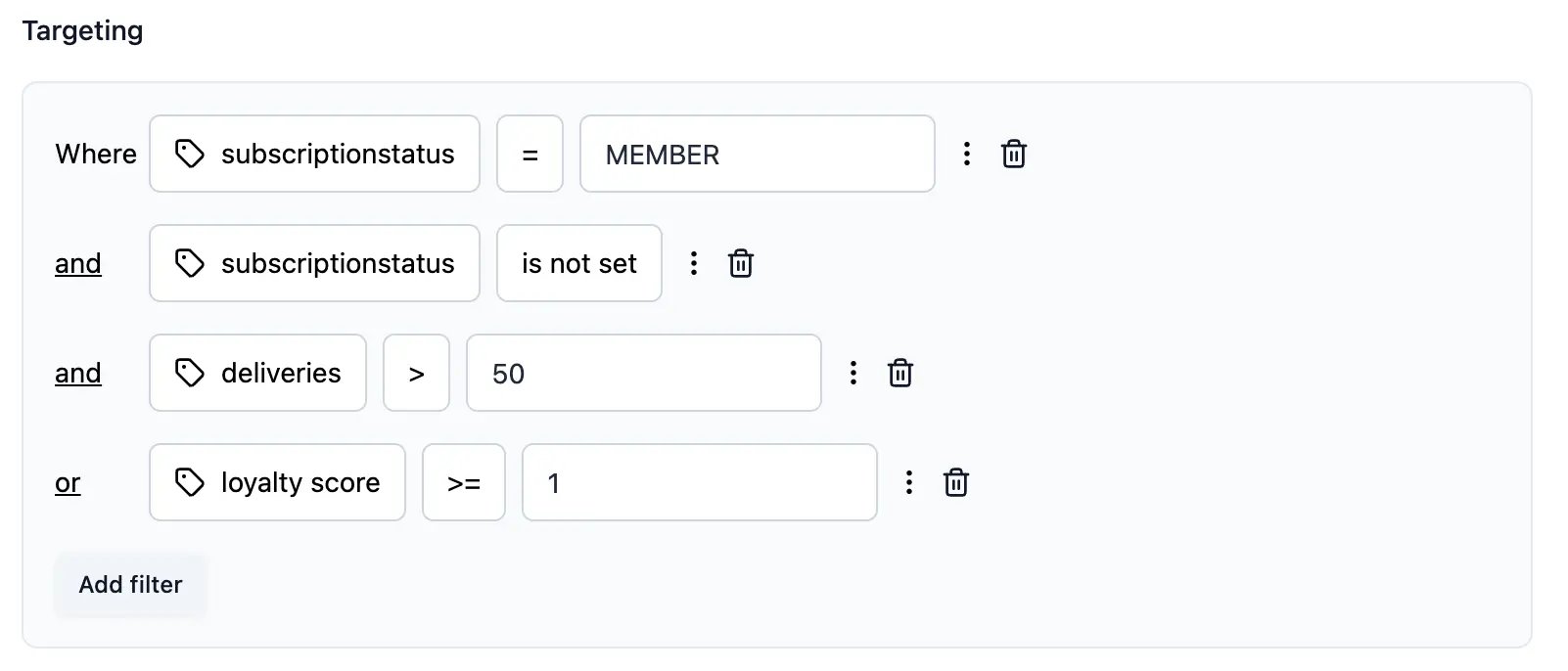
There are three means to move Contacts in or out of Segments: **Attributes**, other **Segments** and **Devices**:
1. **Attributes**: If the value of a specific attribute matches, the user becomes part of the Segment.
### Segment Configuration
There are three means to move Contacts in or out of Segments: **Attributes**, other **Segments** and **Devices**:
1. **Attributes**: If the value of a specific attribute matches, the user becomes part of the Segment.
 2. **Segments**: You can nest Segments meaning that if a user is or is not part of another Segment, they can be included or excluded
 3. **Devices**: If a user uses a Phone or Desktop, you can include or exclude them
 4. **Filter Groups:** You can group any of the above conditions in group and connect them logically with `AND` or `OR`. This allows for maximum granularity.